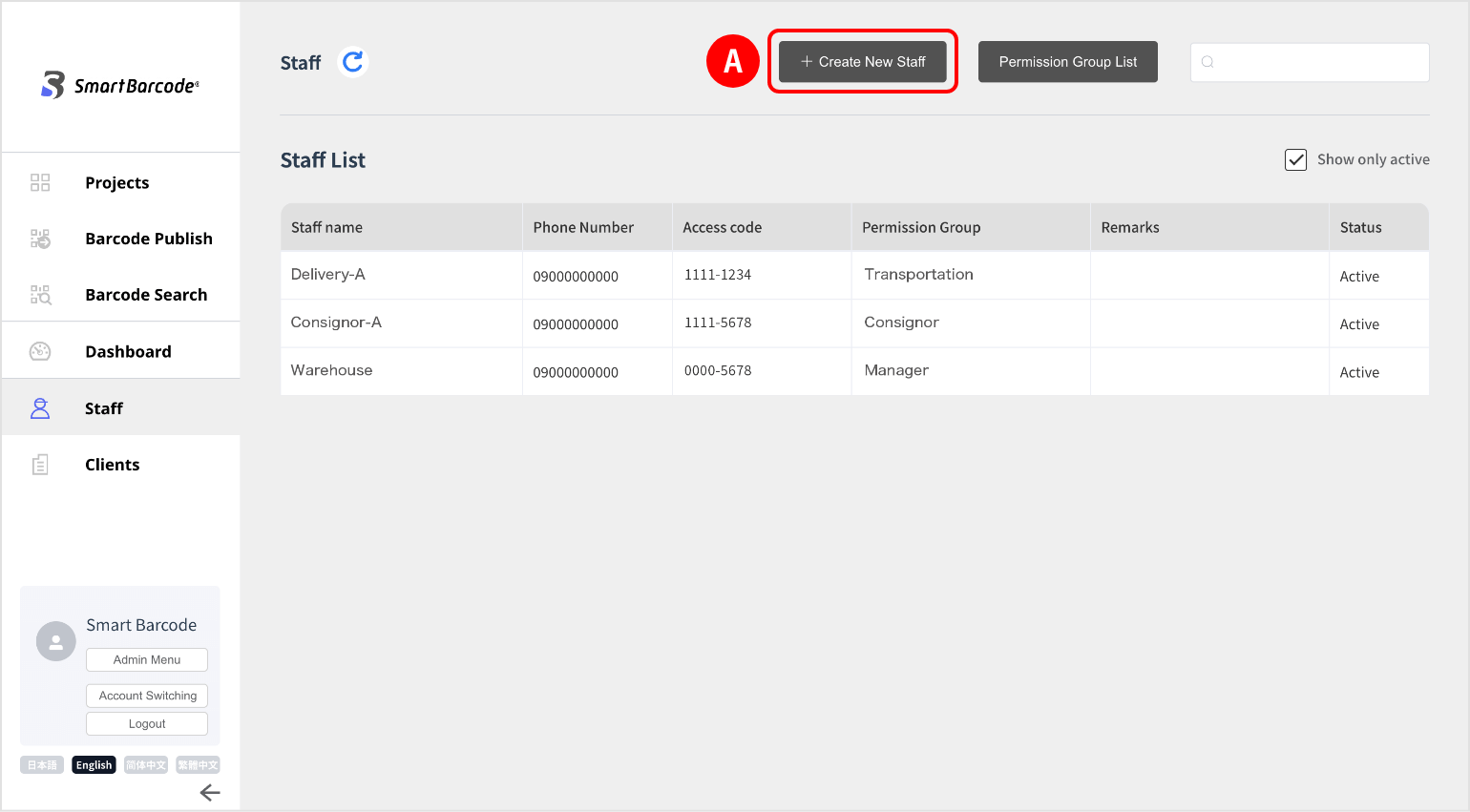
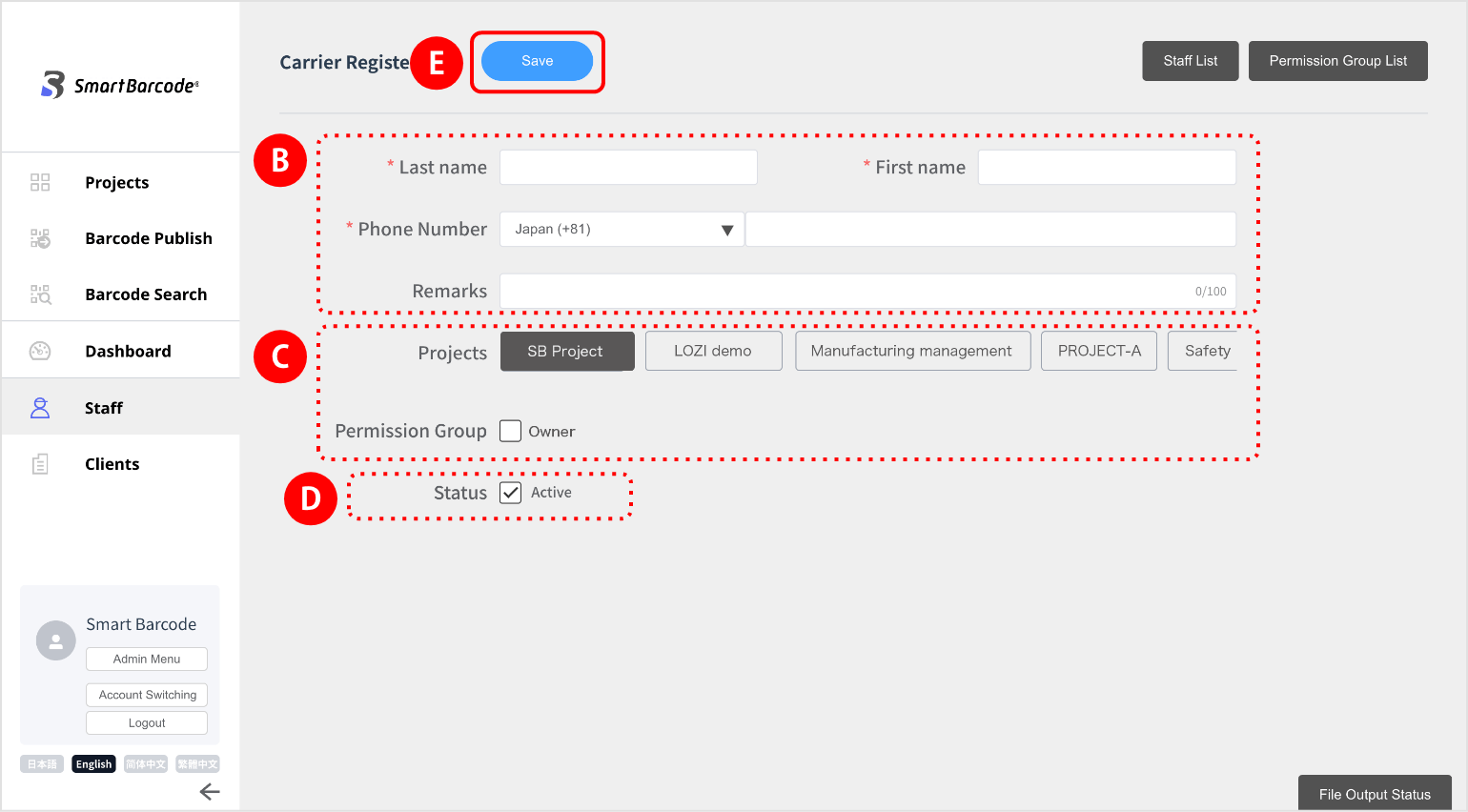
(2) Enter the staff’s “Last name, First name, Phone number, Remarks field (optional)”.
(3) Select the relevant project from “Projects”  to display “permission group”.
Select which authorization group the staff belongs to.
(4) You can log in when “Active” is checked in “Status”, If you uncheck it, you will not be able to log in.
(5) When the input is complete, click “Save”.
(6) Return to the “staff” screen, the registered staff information will be displayed in the list with an automatically numbered 8-digit access code.
(7) When the registration is completed, the staff information will be reflected in the relevant project,
you will be able to trace.
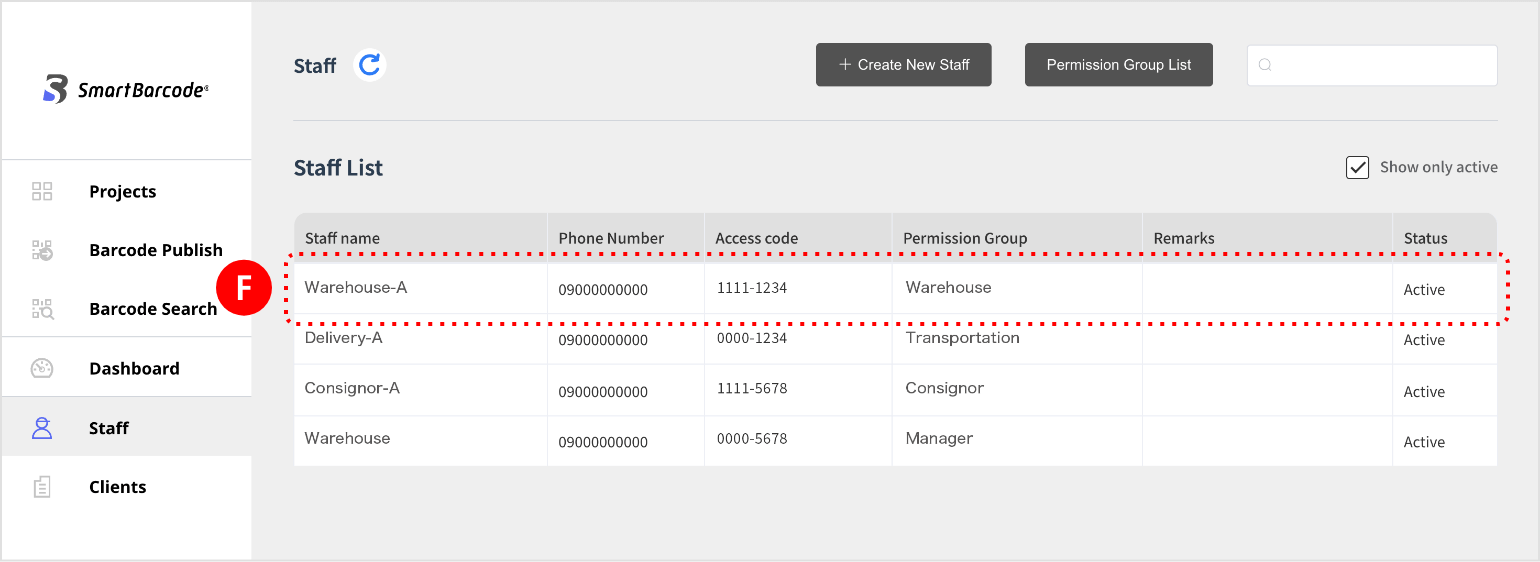
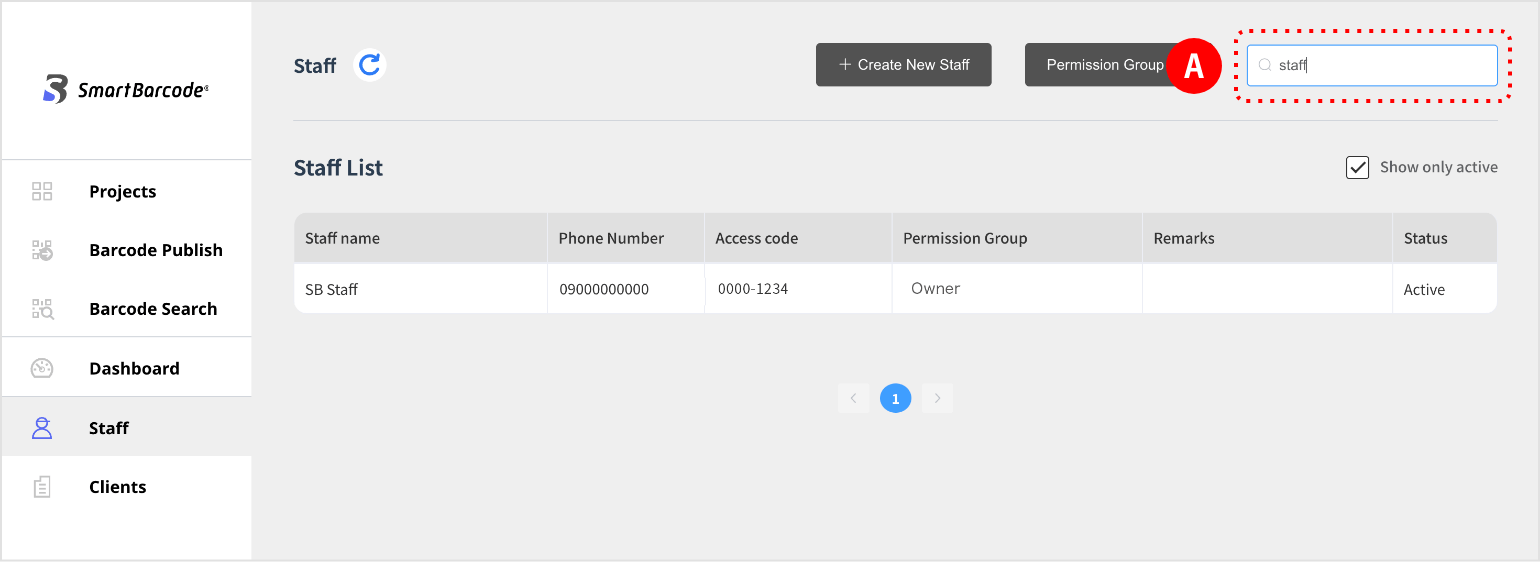
(1) A list of staff will be displayed.
If you want to search for staff, you can search from the search window at the top right of the screen.
* You can search by name, mobile phone number, and remarks information.
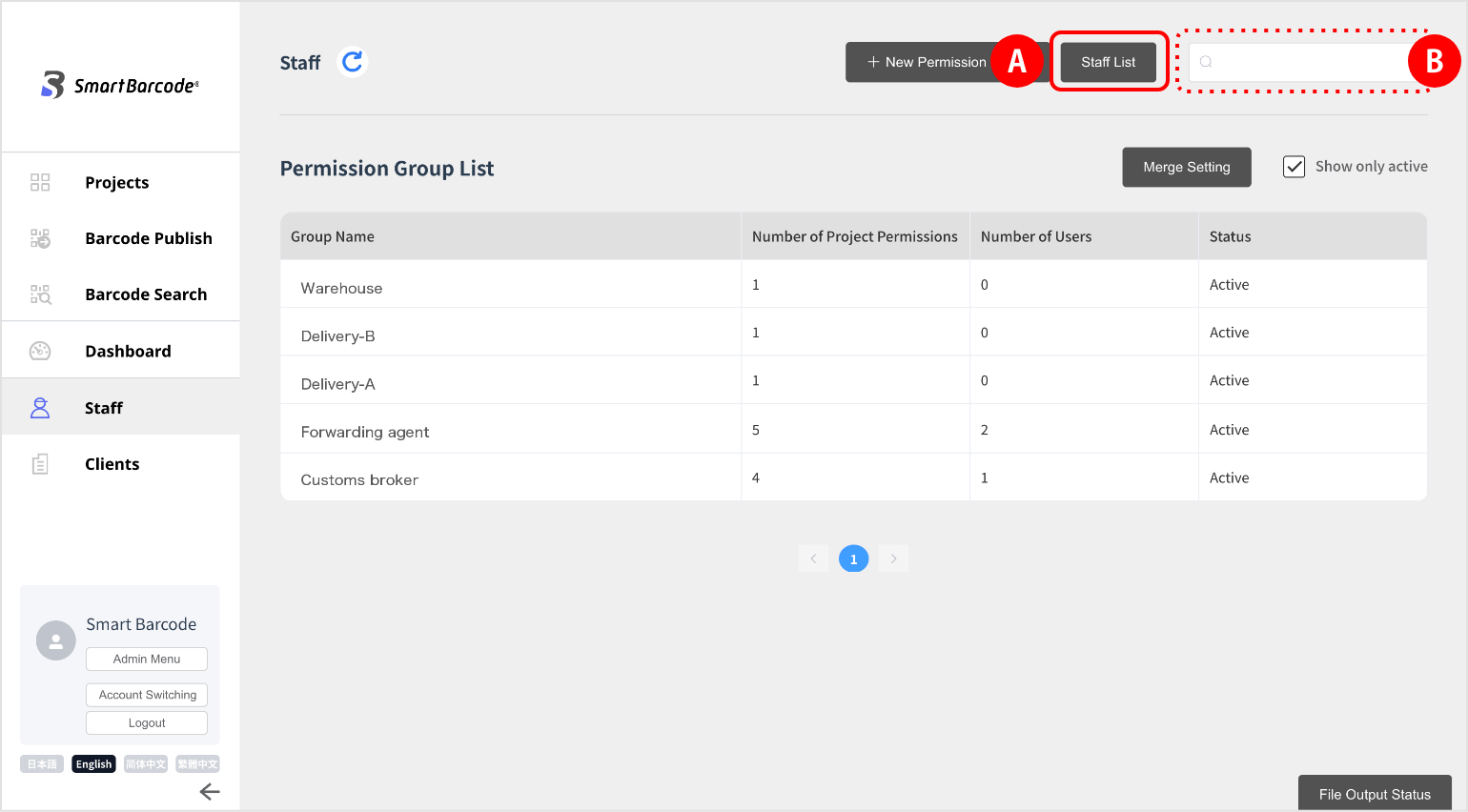
(1) Permission groups are displayed in a list.
If you want to search for a permission group, you can do so from the search windowat the top right of the screen.
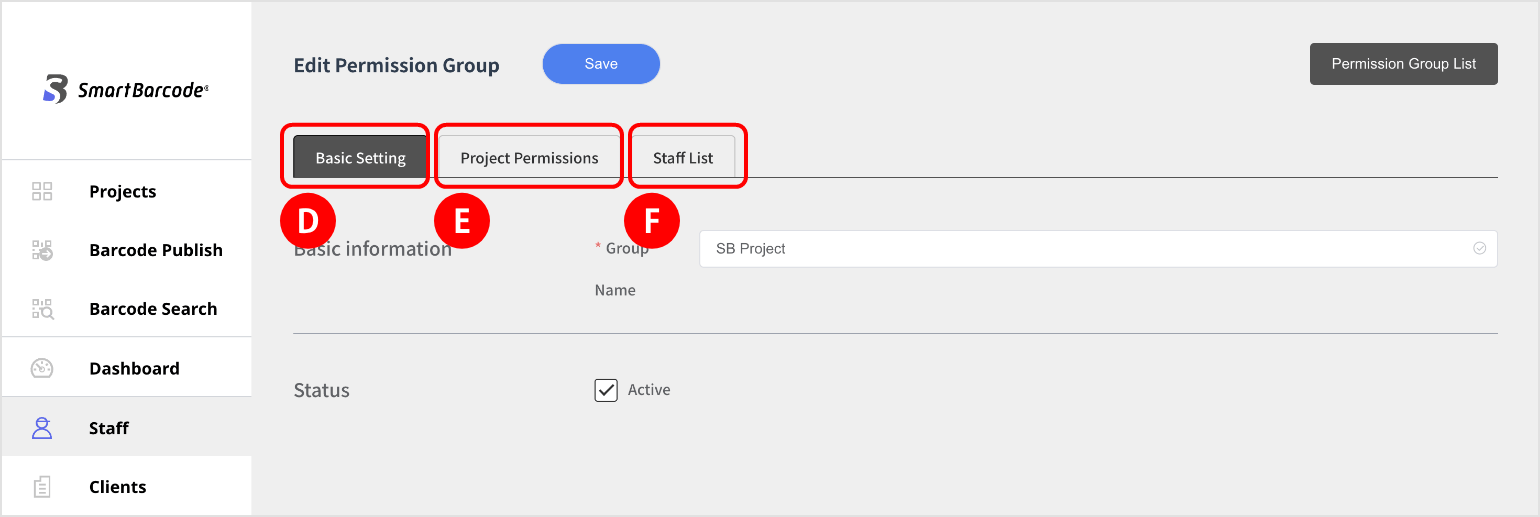
 “Basic settings”, “Project permissions”, and “Staff list”.
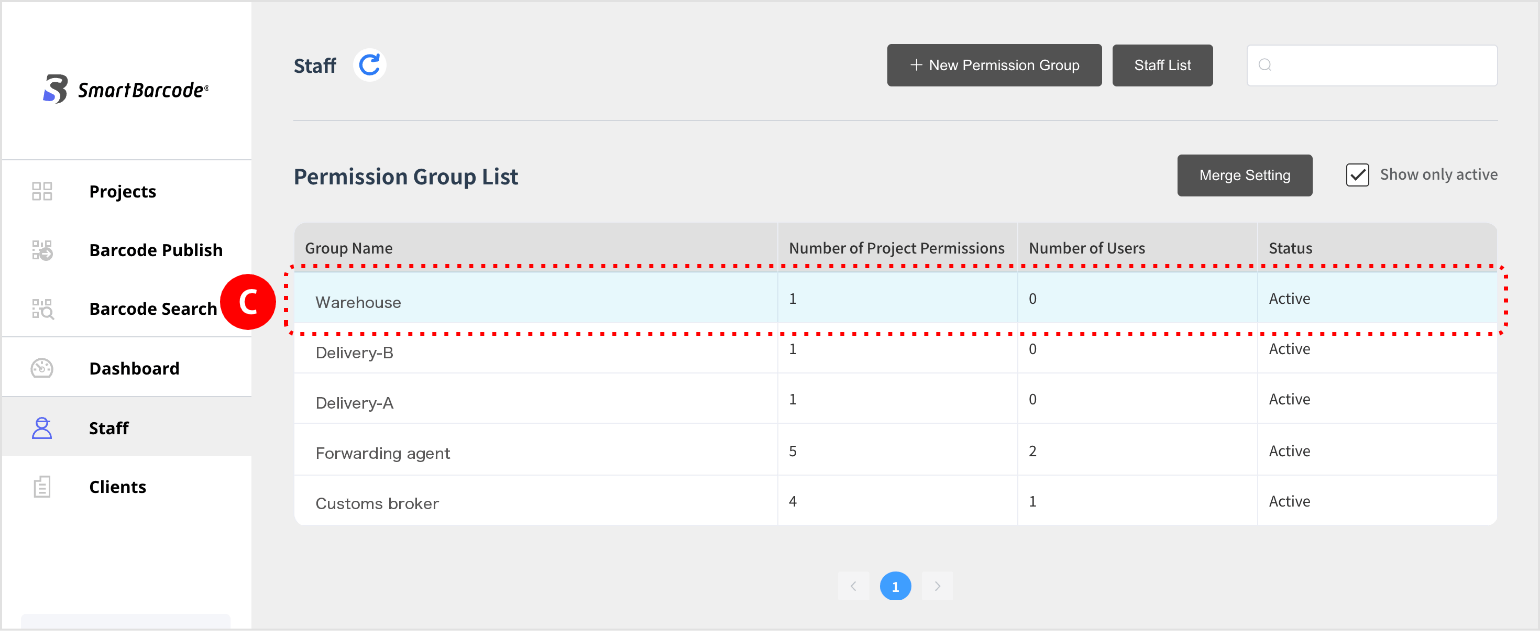
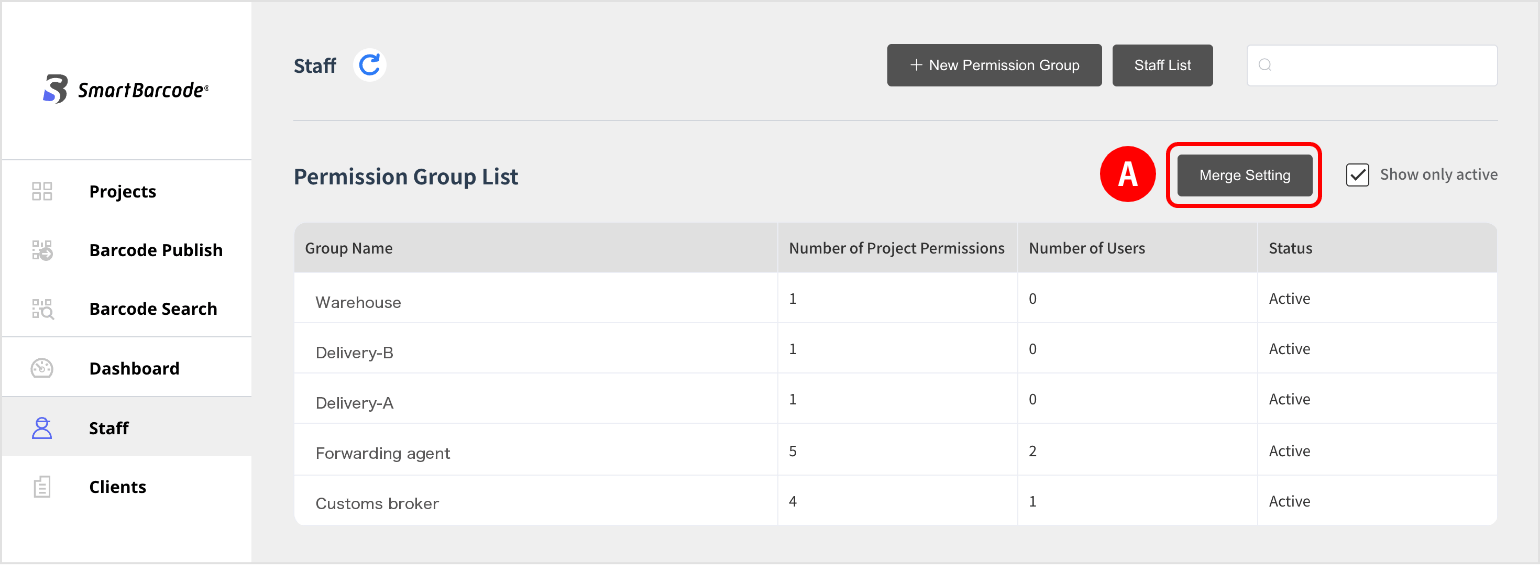
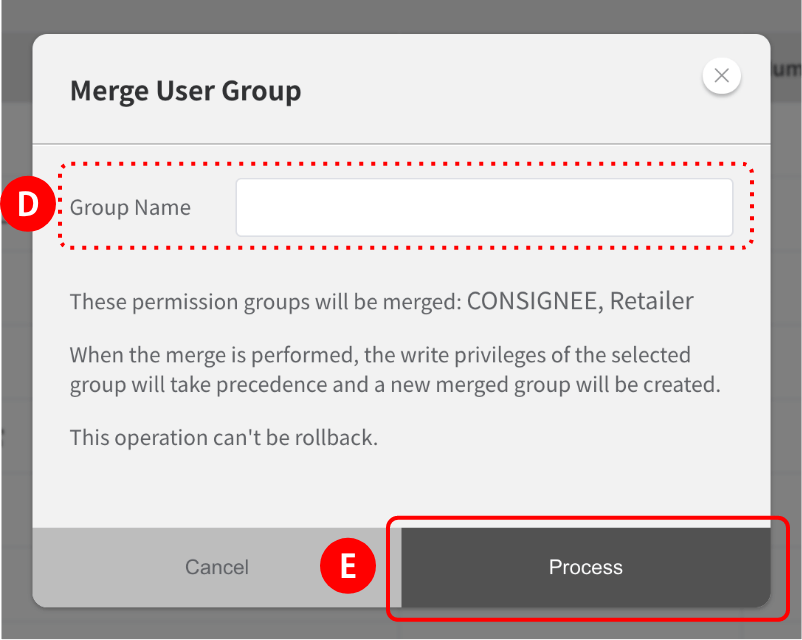
(2) Select the group nameyou want to merge and click “confirm merge”at the top right of the screen.
Enter a new permission group name and click execute.
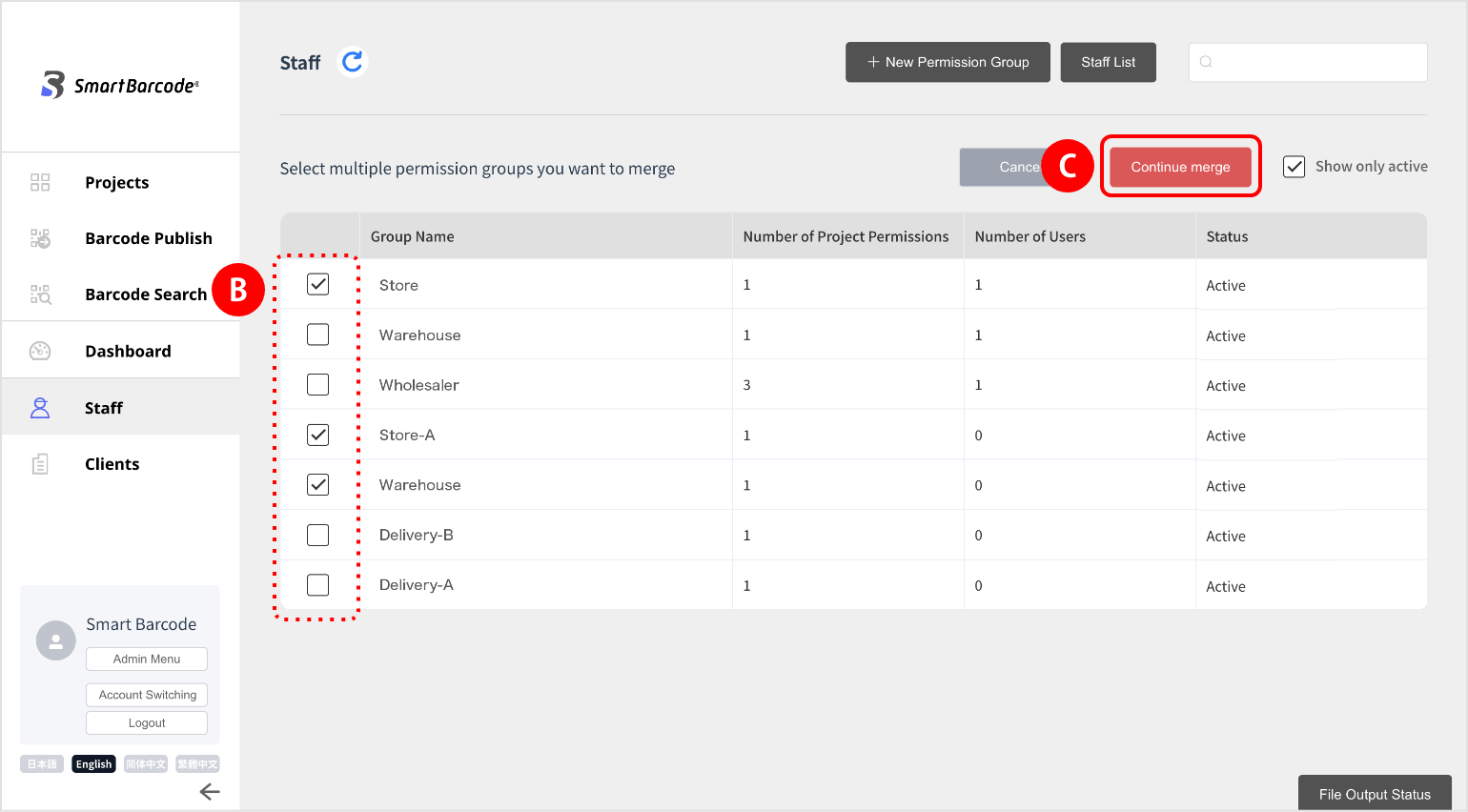 and click execute.