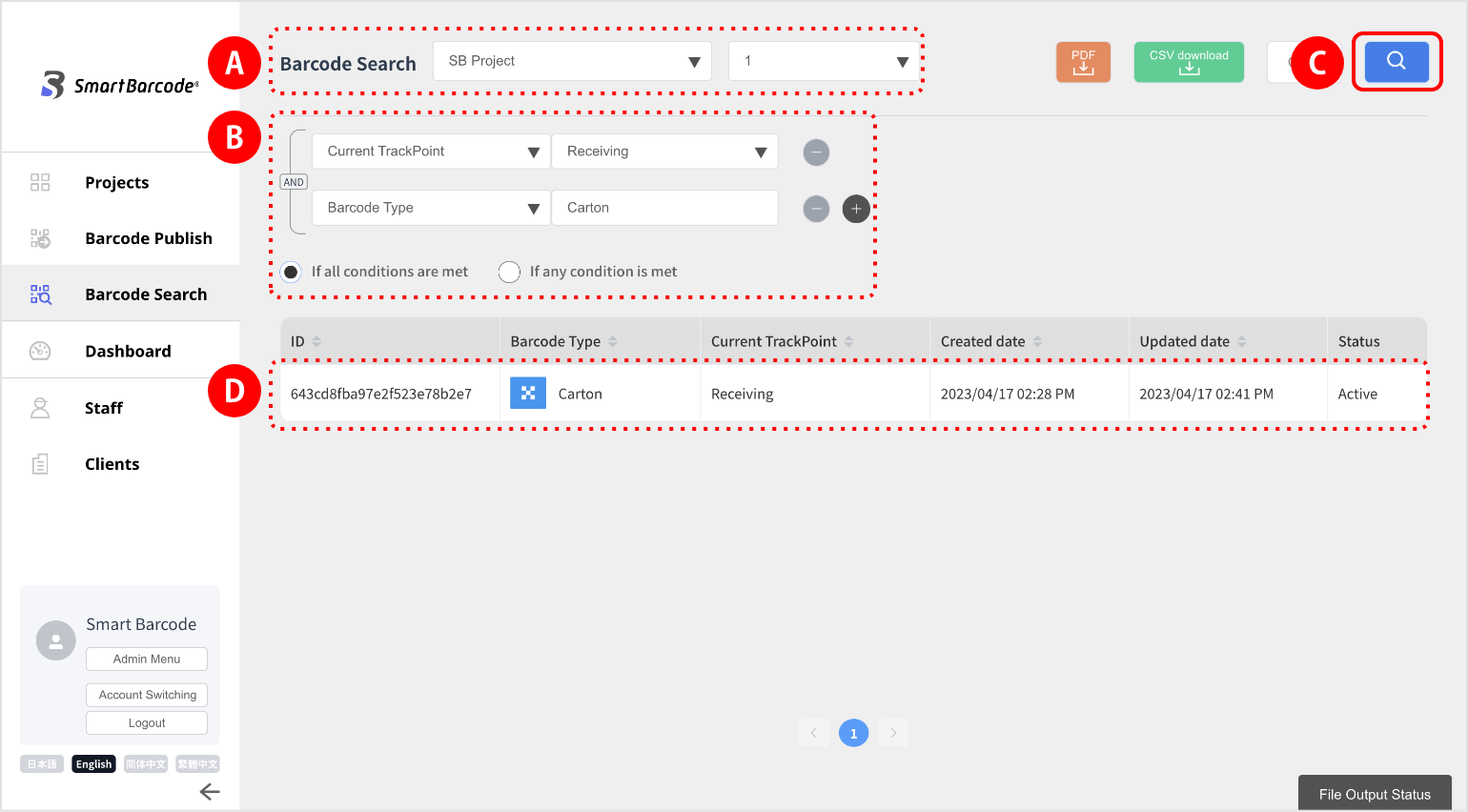
(1) Select the relevant project  (you can also select the version).
(2) Set the search conditions  and click the search button.

A list of applicable barcodes appears.
(3) Click the corresponding rowto display the barcode summary and trace information.
to display the barcode summary and trace information. 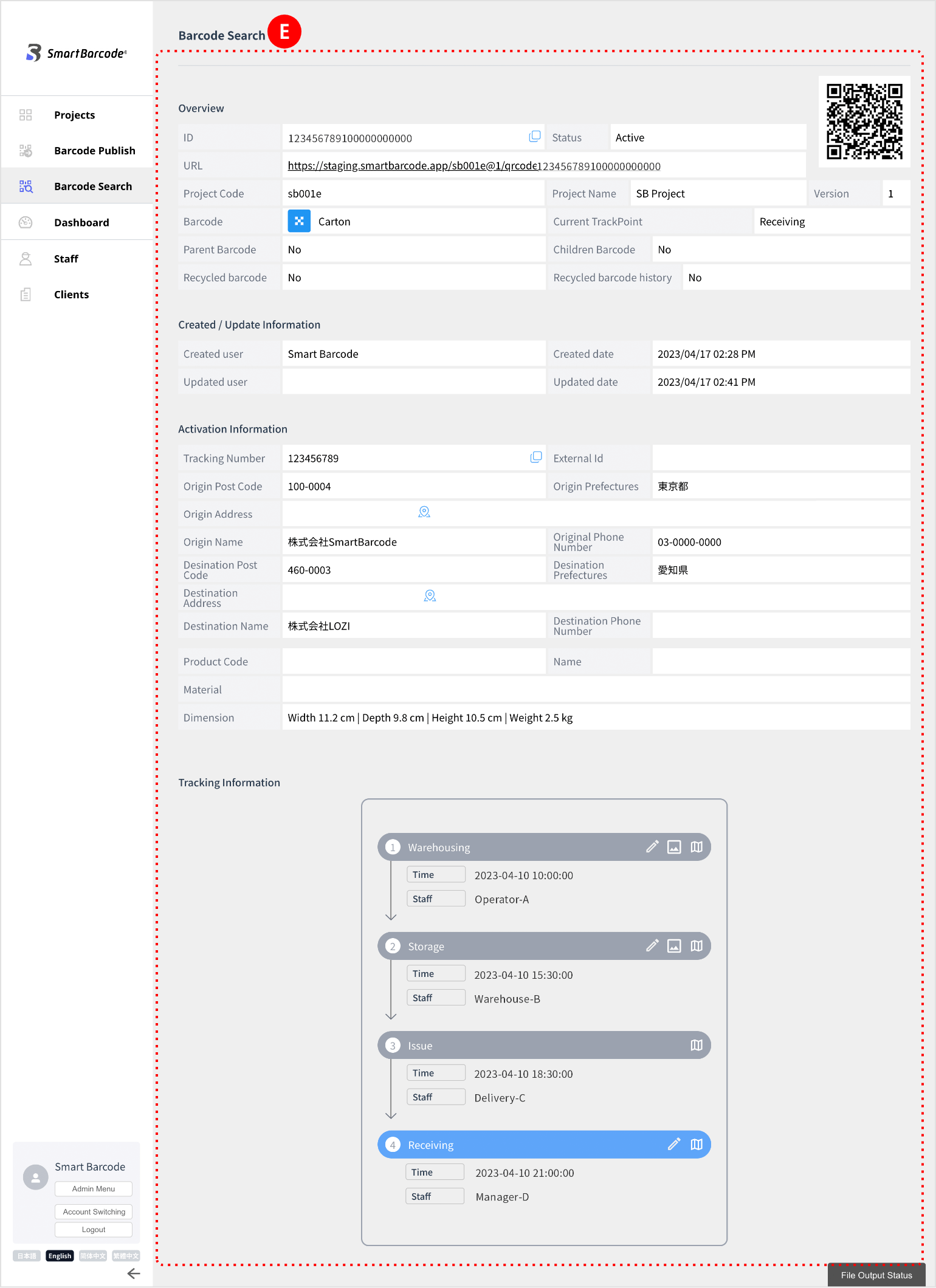
(4) At this time, if the “CSV download” button at the top right of the screen is green*, CSVdownload is available.
(5) Click the “CSV download” button, and then click “File Output Status” at the bottom right of the screen.
at the top right of the screen is green*, CSVdownload is available.(5) Click the “CSV download” button, and then click “File Output Status”
at the bottom right of the screen. 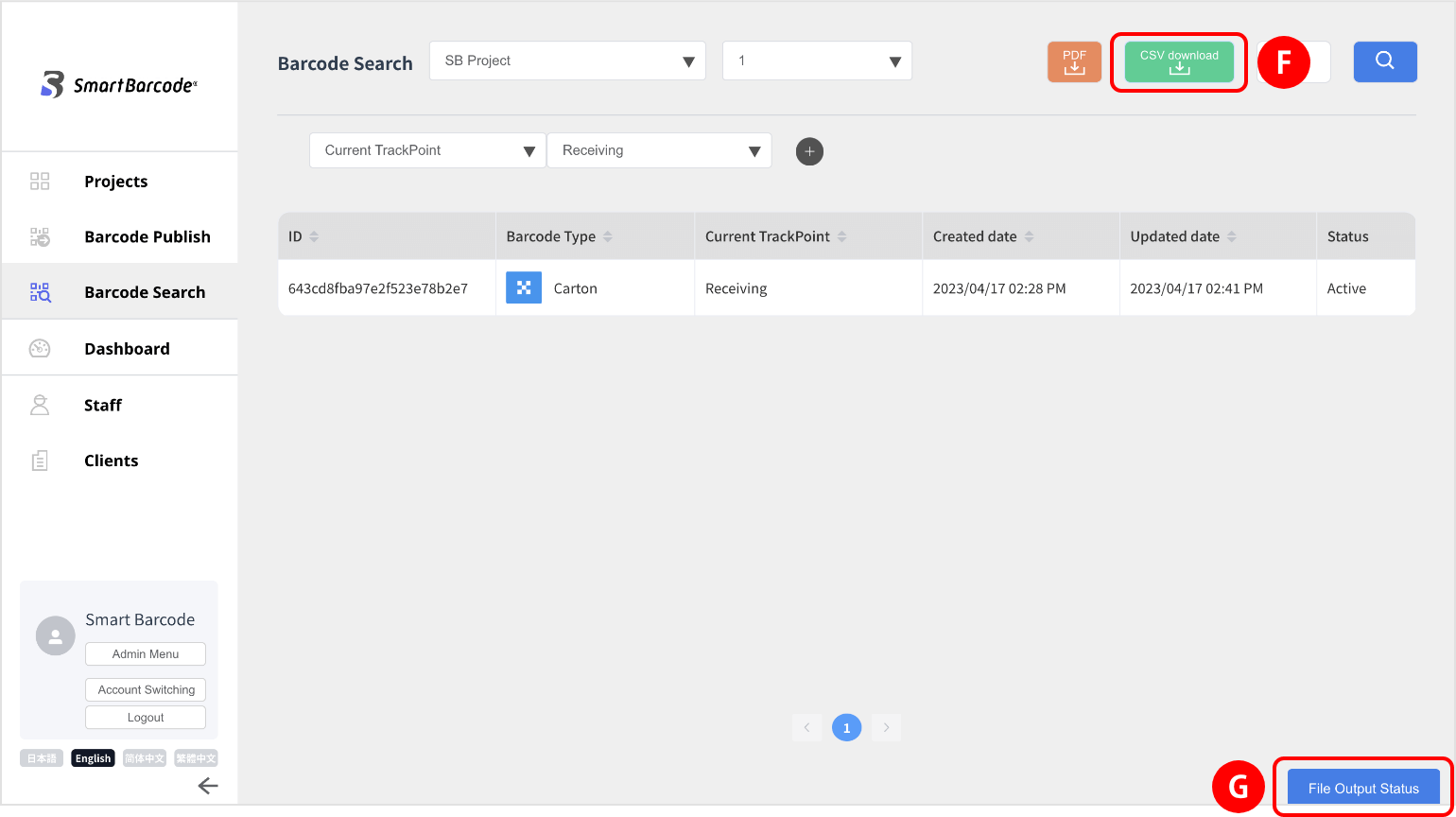
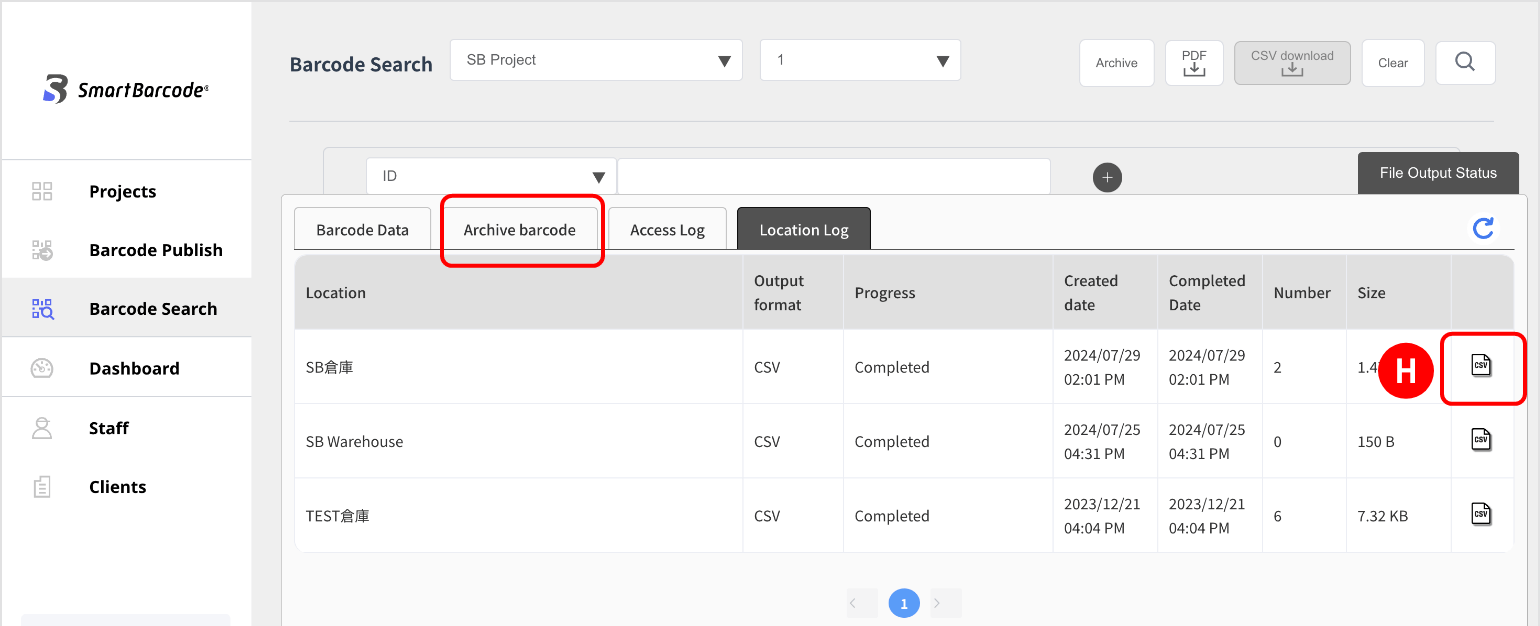
(6) You can download the file by clicking “CSV file icon”.
(1) Search for the barcode you no longer need.
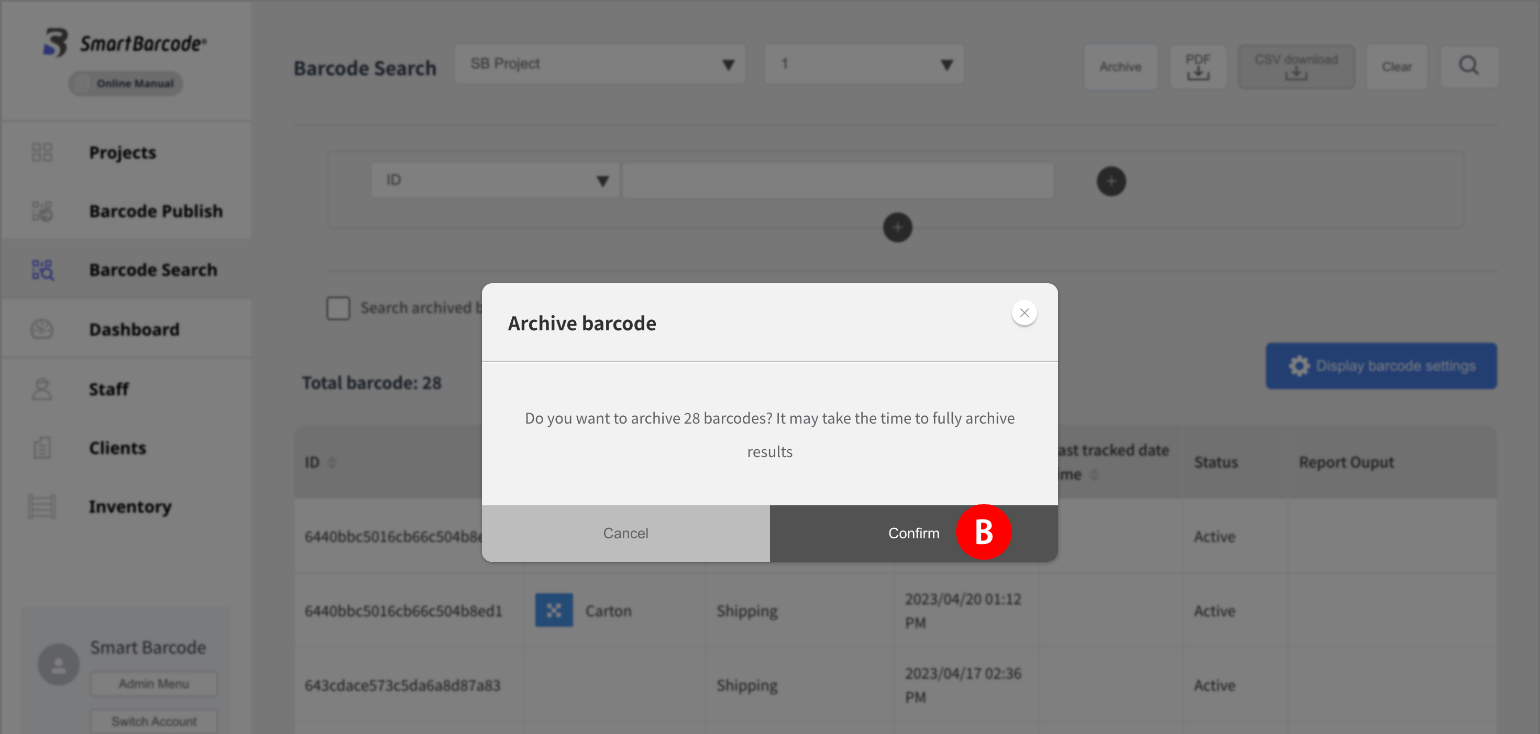
(2) In the search results, click the “Archive”button and confirmthe action on the confirmation screen.
(2) In the search results, click the “Archive”
button and confirmthe action on the confirmation screen. 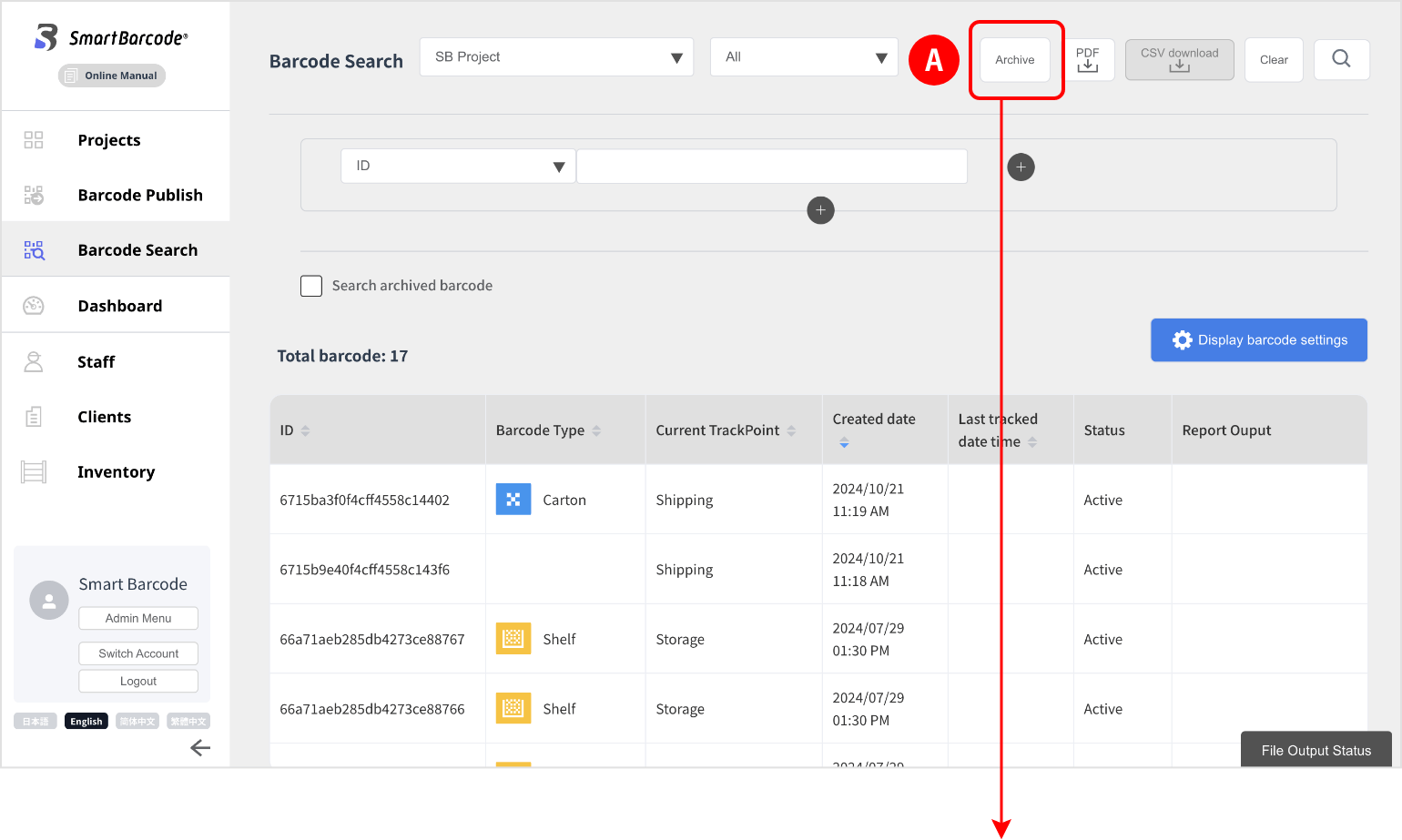
(3) Archived data can be checked by clicking the CSV iconin the archived data list under the file output status.
in the archived data list under the file output status. 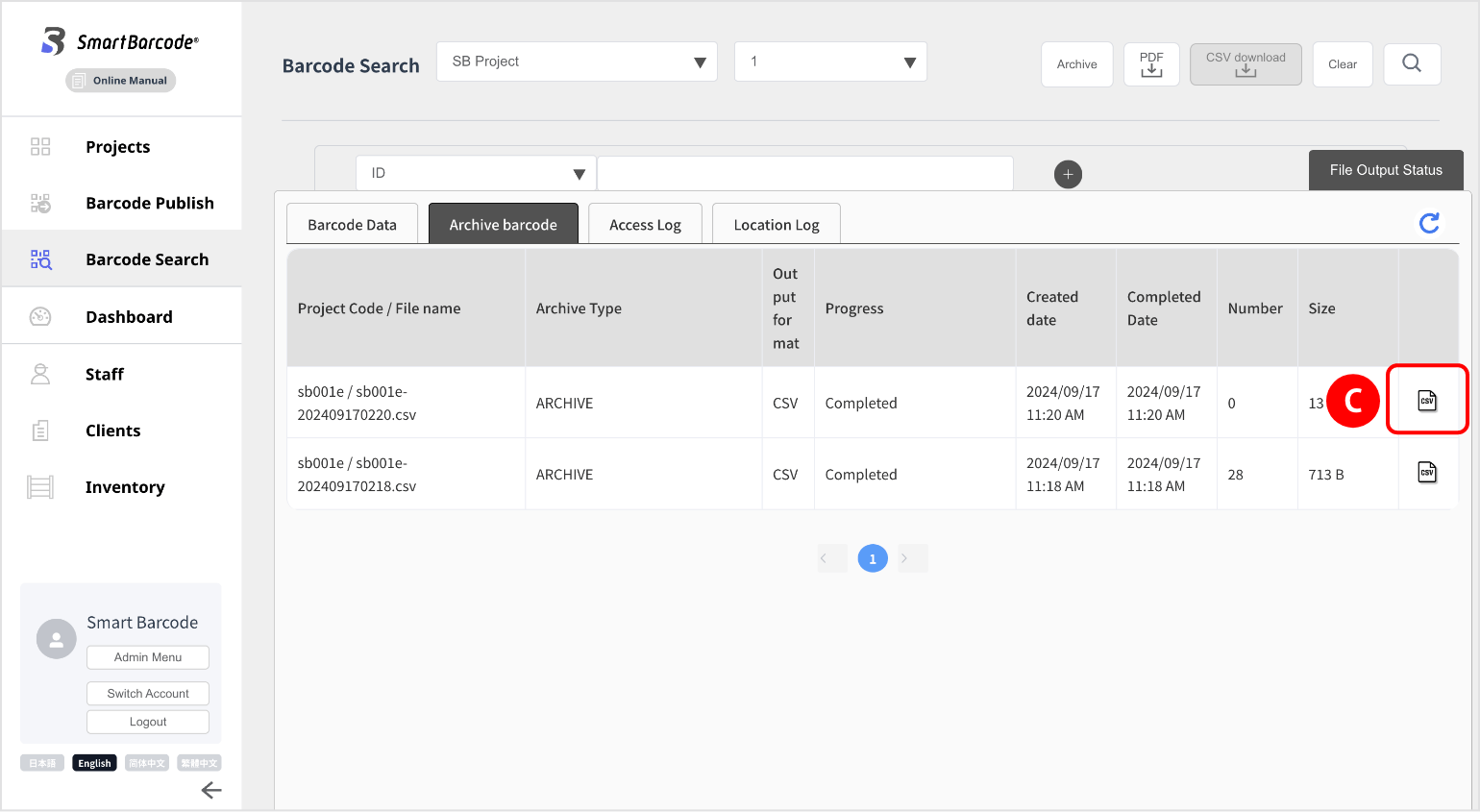
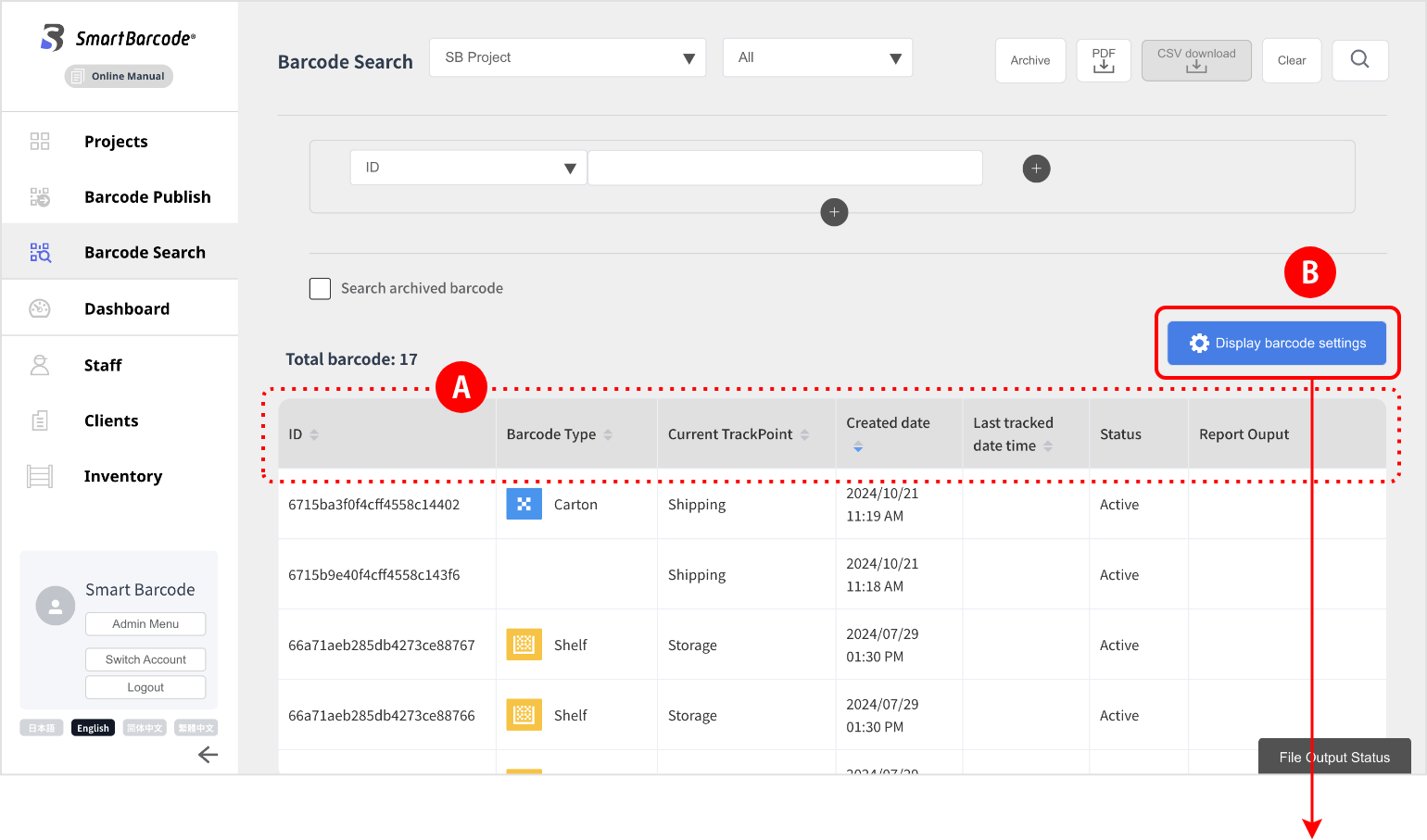
You can customize the items shown on the barcode search screen.
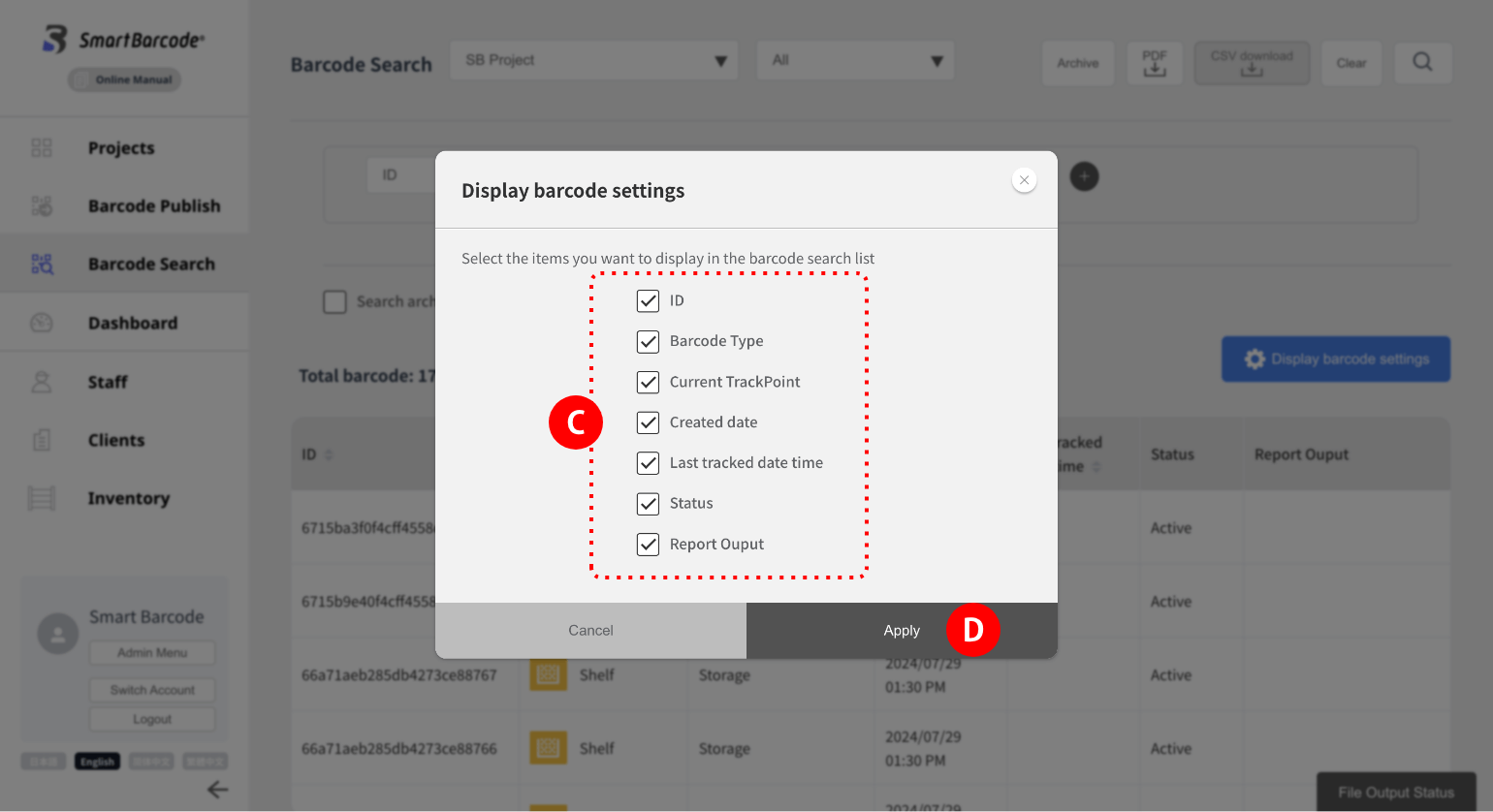
(1) Click “Display Item Settings” and check the itemsyou want to display in the modal,
then click “Apply”to reflect the changes.
and check the itemsyou want to display in the modal,then click “Apply”
to reflect the changes.