How To Operate
Barcode Issuance
From the side menu “Barcode issuance” on the management screen, you can issue two patterns of barcodes.
Bulk Barcodes
You can issue barcodes for which information has not been recorded.
After reading the barcode with the device, the information is recorded one by one.
This can be used when multiple traced information is different at the start of the trace.
After reading the barcode with the device, the information is recorded one by one.
This can be used when multiple traced information is different at the start of the trace.
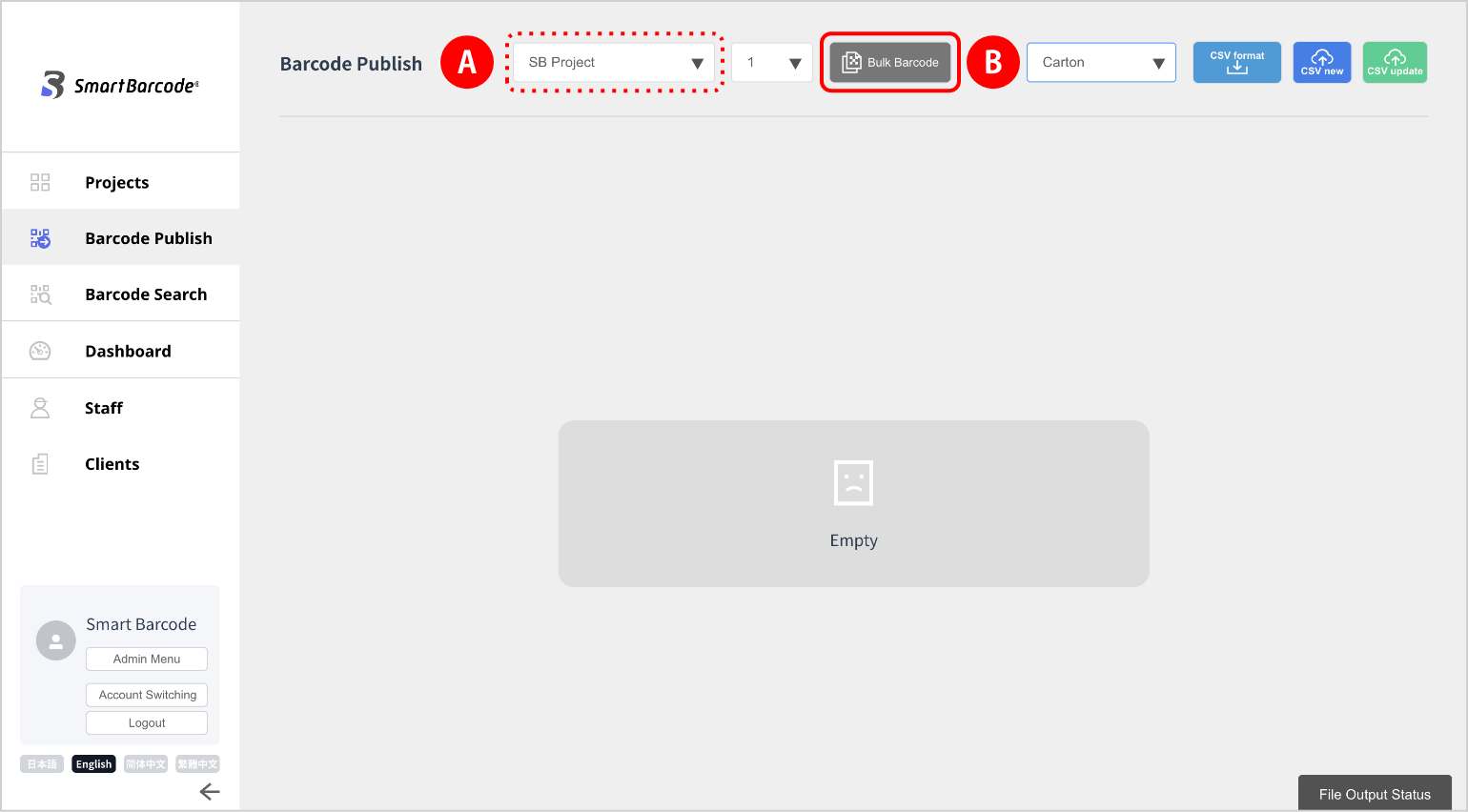
(1) Select the relevant project.
(2) Click the Bulk Barcode button.

(2) Click the Bulk Barcode button.
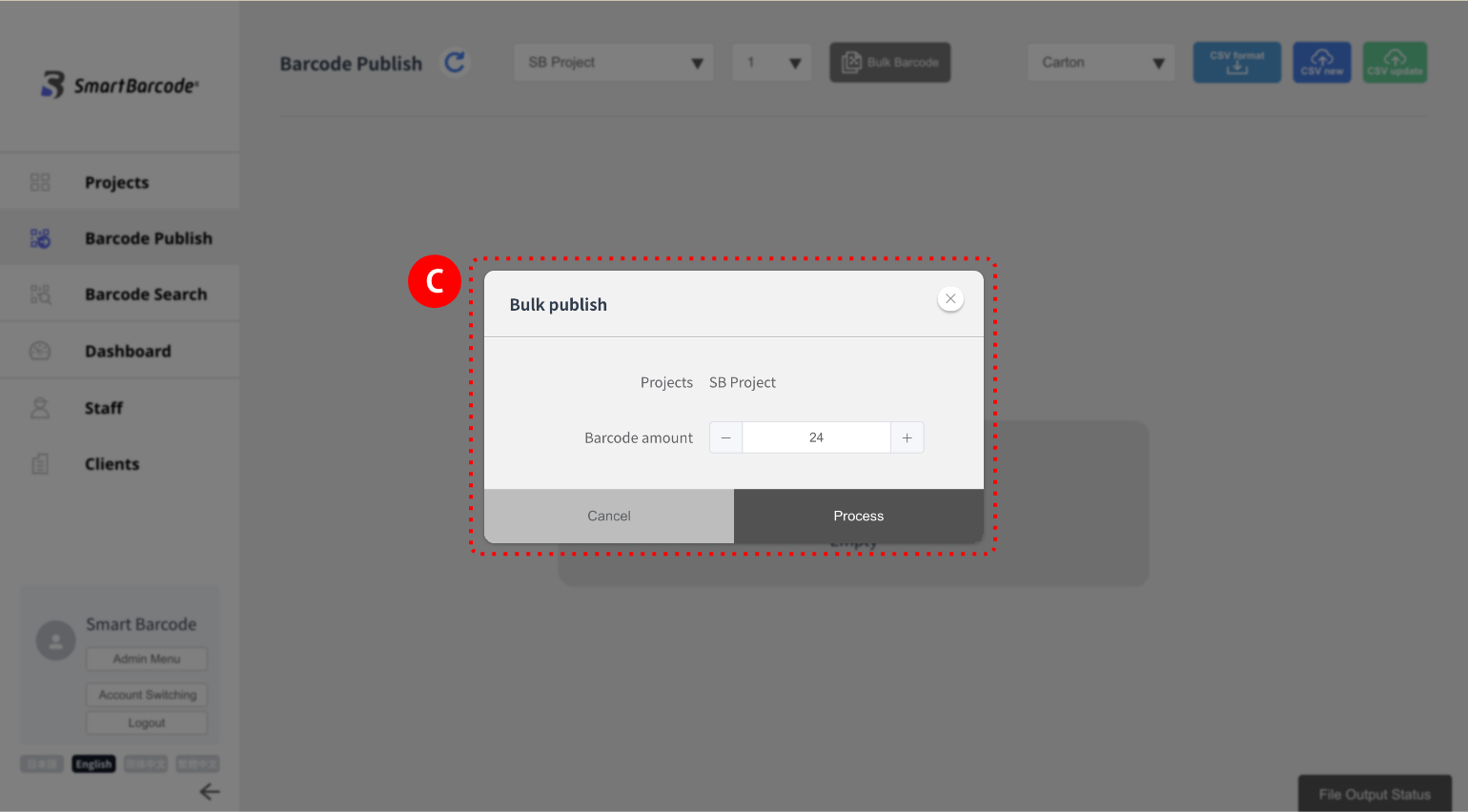
(3) Enter the number of outputs.
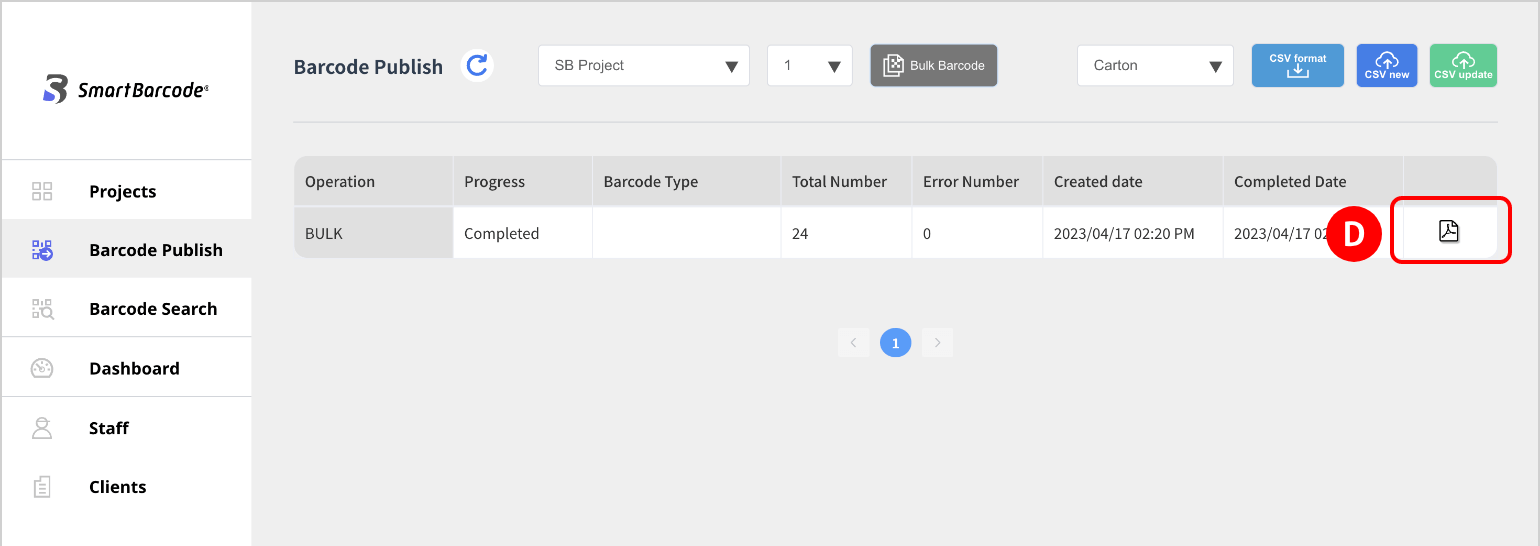
(4) Click the PDF icon.
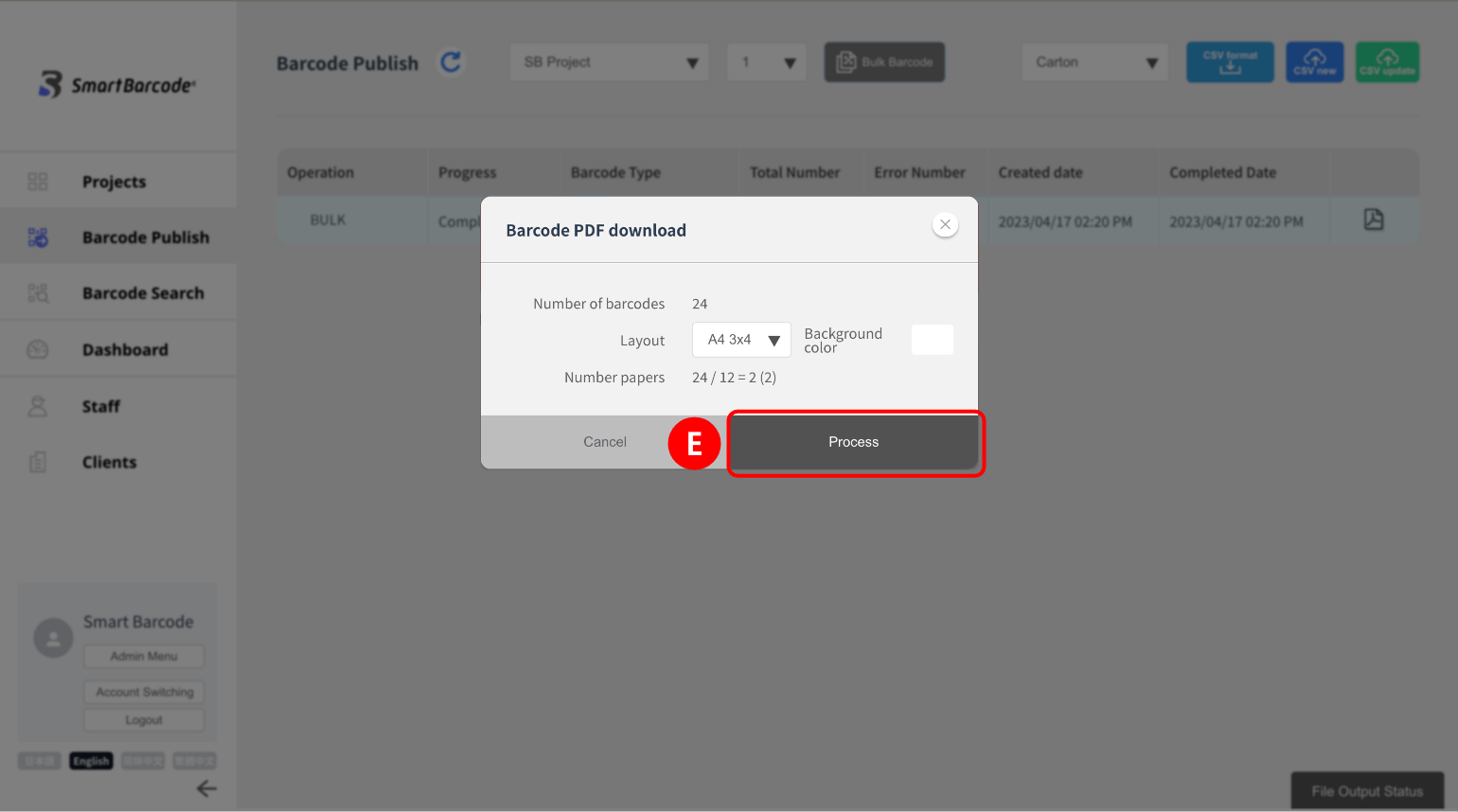
(5) Select the layout* and background color, and click Process
to download it.

(5) Select the layout* and background color, and click Process
to download it.
* A4 size with face (× rows)
Pre-Recorded Barcodes
By uploading a csv file that records the necessary information, you can issue a barcode with the information entered.
This can be used when multiple trace target information is the same at the start of the trace.
(1) Select the relevant project.
(2) Select the relevant trace target,
download CSV format.

(2) Select the relevant trace target,
download CSV format.
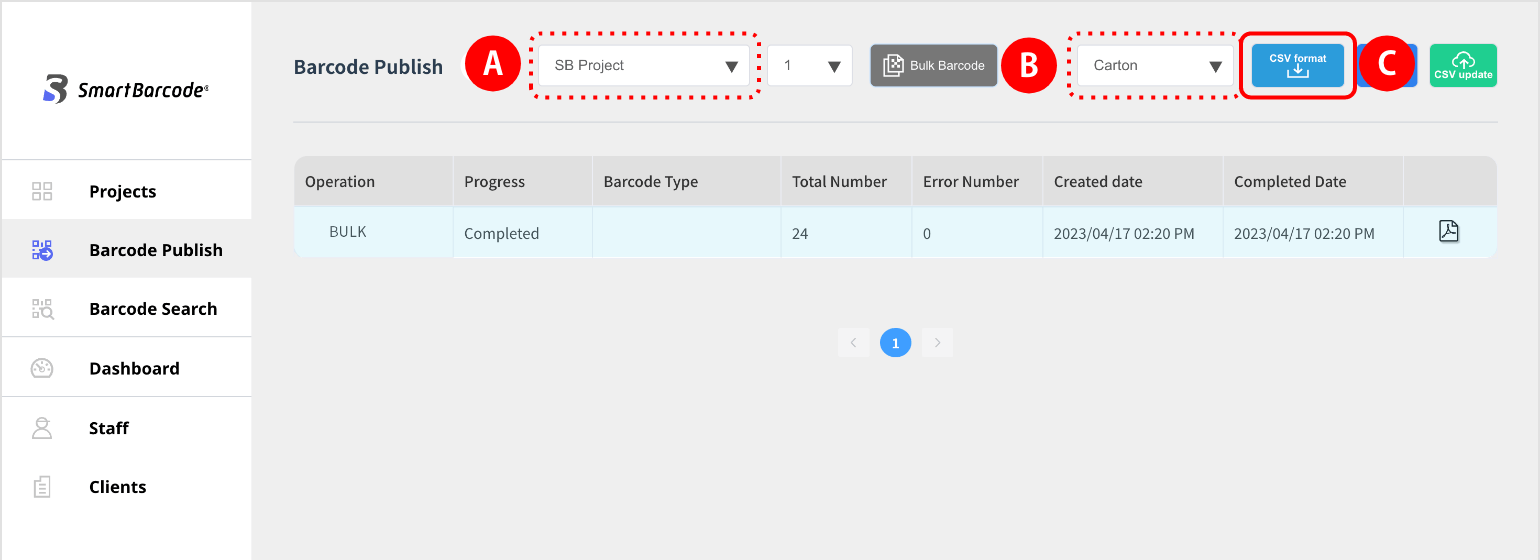
(3) Enter the necessary information in the downloaded CSV format, upload the file (CSV new).
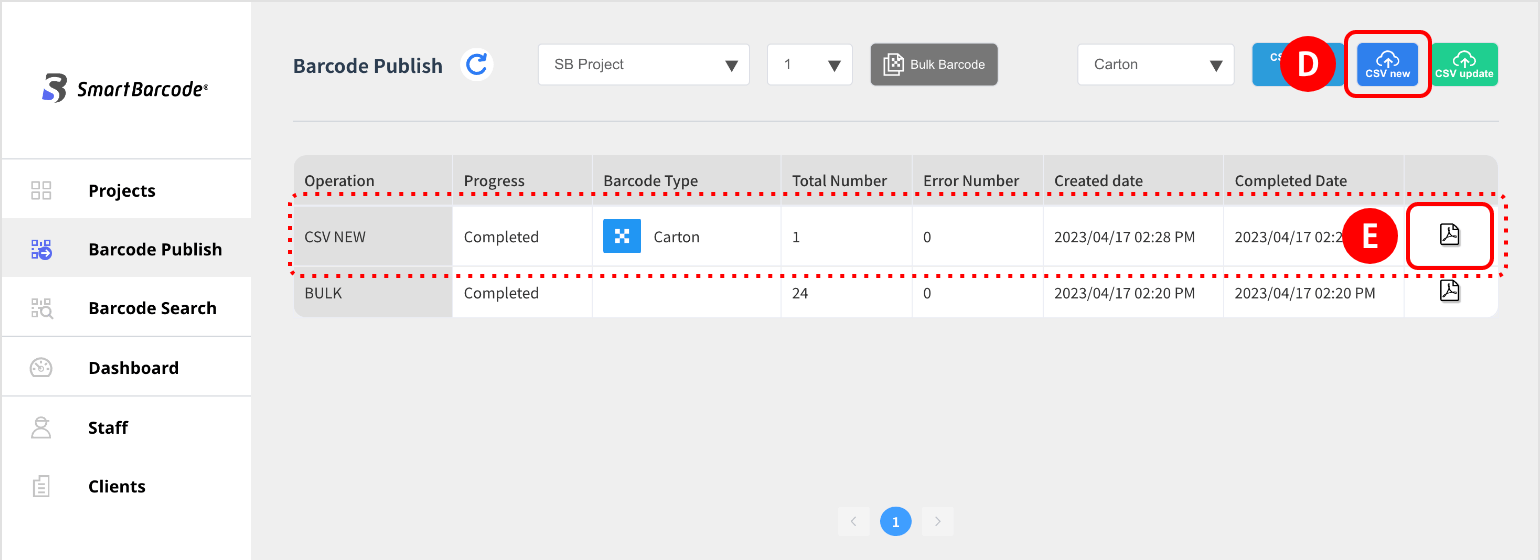
(4) Then click the PDF icon.
(5) When the setting screen is displayed, select the layout* and background color.
A label
is an information name printed at the bottom of a barcode.
(6) Click Process to download.
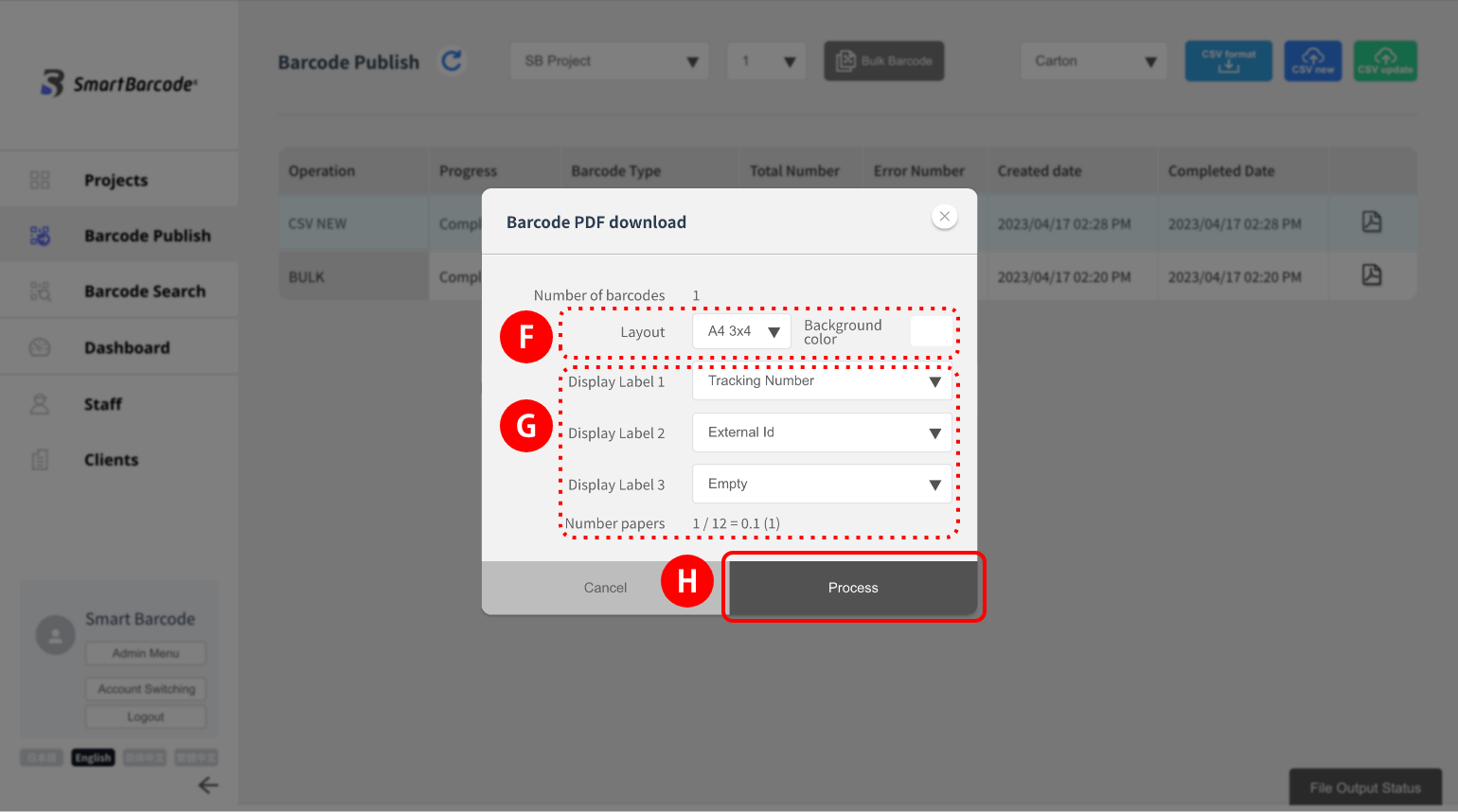
* A4 size with face (× rows)